Connectors
Your accounts, straight from your phone
Connectors let the assistant work with your own Google and Microsoft accounts. Answers are still written on the phone by Gemini Nano; the phone talks to each service directly. There is no Octoryn server, so your data never passes through us.
One tap to connect
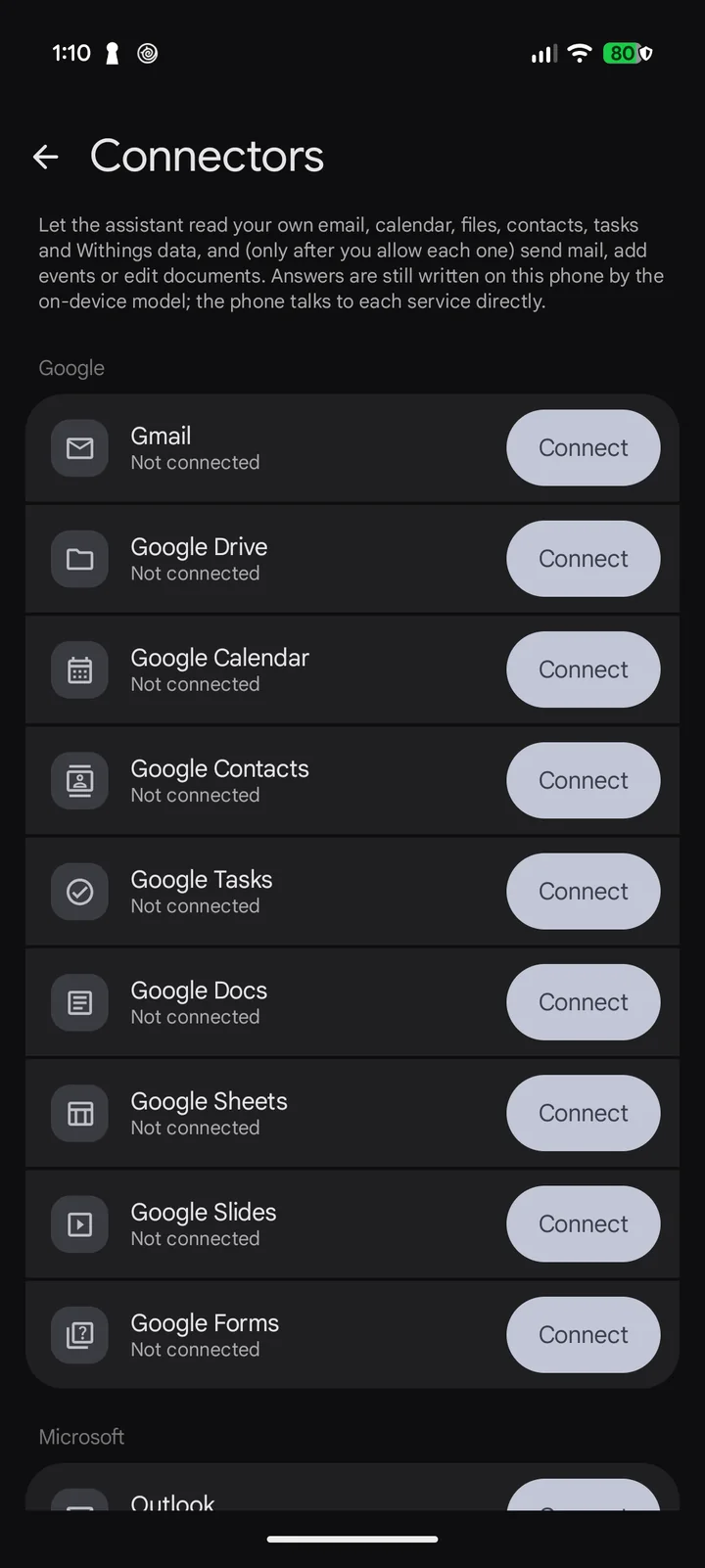
- Open Manage › Connectors and tap Connect next to a service.
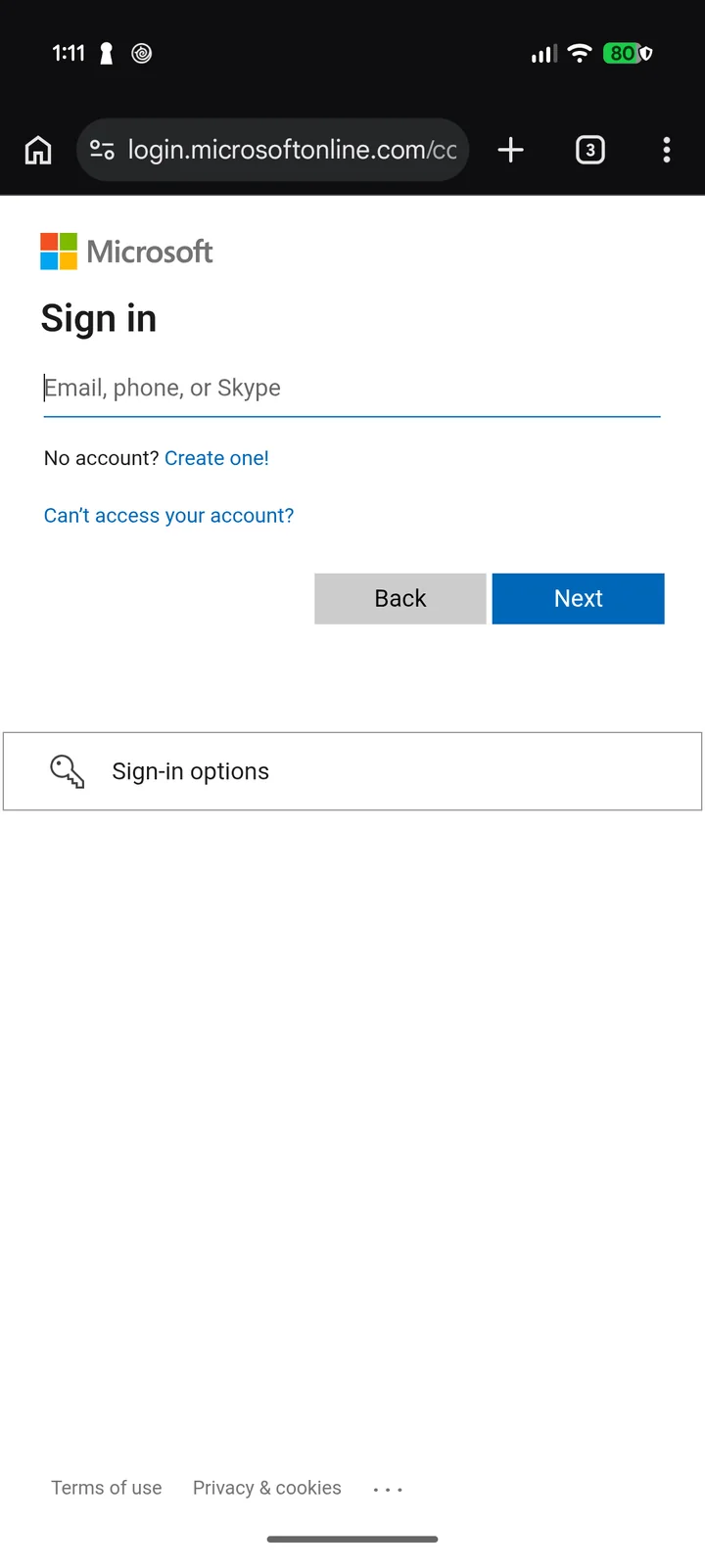
- Sign in with Google or Microsoft on their own page and review the permissions they ask for. Google sign-in uses Google Play services; Microsoft opens its sign-in page in the browser.
- Ask in plain words, for example “What’s on my calendar tomorrow?” or “Find the email from the school about the excursion.” The connector tools are offered only while the Tools chip is on.
Each connector asks only for the permissions it needs. Connecting a second one from the same account asks for the combined set again.
Reads run directly
Searching mail, reading events or opening a file runs without a prompt, so answers are quick. You can set any connector tool to ask first, or switch it off.
Writes always ask
Sending mail, adding or changing events, adding tasks, and writing to Docs or Sheets always show an Allow / Deny card with the full content: recipients, subject and body. This cannot be turned off.
Never on the lock screen
When the assistant is used above the lock screen or from the Quick Settings tile while locked, no connector is available at all.
Encrypted tokens
Sign-in tokens are encrypted with an AES-256-GCM key held in the Android Keystore and stored only in the app’s private storage.
Available connectors
What each connector can read and write. The exact permission names are listed in the privacy policy.
Gmail · Outlook
Search and read email. Send an email you approve.
Google Calendar · Outlook Calendar
List events. Create or change an event you approve.
Google Drive · OneDrive
Find files and read their text. Read only.
Google Contacts · Outlook Contacts
Look up email addresses and phone numbers. Read only.
Google Tasks
List tasks. Add a task or mark one done after you approve.
Google Docs
Read documents. Create one or add text after you approve.
Google Sheets
Read cells. Append rows after you approve.
Google Slides · Google Forms
Read slide text, form questions and responses. Read only.
Disconnecting and revoking access
Tap Disconnect on the Connectors screen. When it is the last connector for that account, the app deletes the account’s tokens from the phone, and for Google also revokes them with Google. You can also remove access from your account at any time:
- Google: myaccount.google.com/connections (Third-party apps & services).
- Microsoft personal account: account.live.com/consent/Manage.
- Microsoft work or school account: myapps.microsoft.com, or ask your administrator.
Uninstalling the app deletes everything it stored, including the tokens.